
How Can I Share a CodeMeter License?
With a Standard License
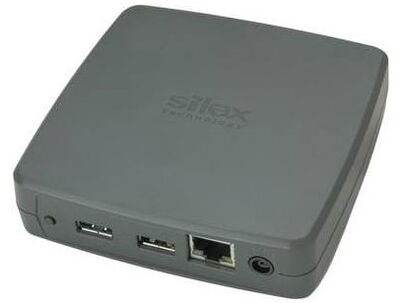
- Use a USB-Device-Server DS-600 from Silex or a similar products.
- Test it internally and then in a second step over internet (if required)
- Setup depends on LAN structure (VPN, Router, firewalls etc.)
With a Floating License
- The floating license must be requested when ordering.
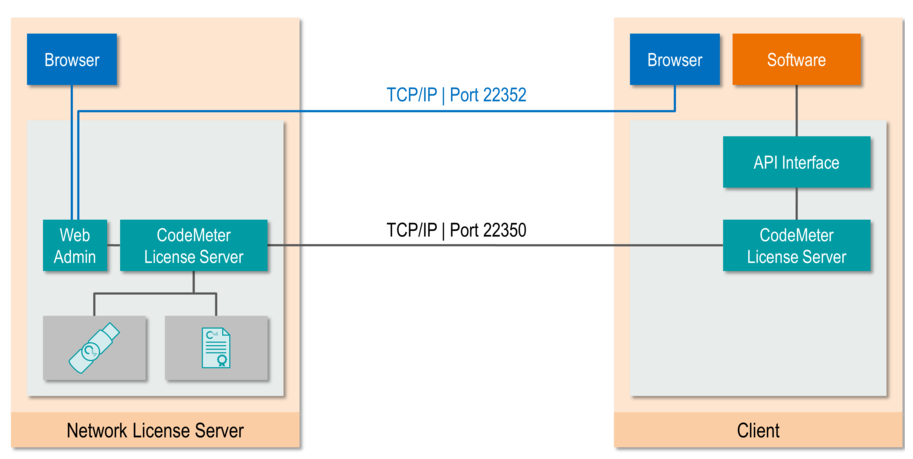
- The CodeMeter license server offers services to other CodeMeter clients which run in the same LAN (Local Area Network) or in a distributed setup. On all computers where a go2signals application is correctly installed a CodeMeter license server is set up. When the go2signals application is started on a computer then the software will communicate with the CodeMeter license server on this computer. The CodeMeter client then gets a license for running the application either from the locally plugged in CodeMeter license server or it searches the LAN for other CodeMeter license servers.
- The CodeMeter network license server may be located in the LAN, in the WAN, or operated in the cloud.
Important:
- You need a license file (default.maw) on the client computer with “License sharing” enabled.
Must be specified when ordering! - Searching for a license in a large network can be very time-consuming (sometimes up to 1-2 minutes)
Setting Up a Basic CodeMeter Server
- Install the CodeMeter software on the server computer (if not already installed with a go2signals product).
- Connect the dongles on the server computer
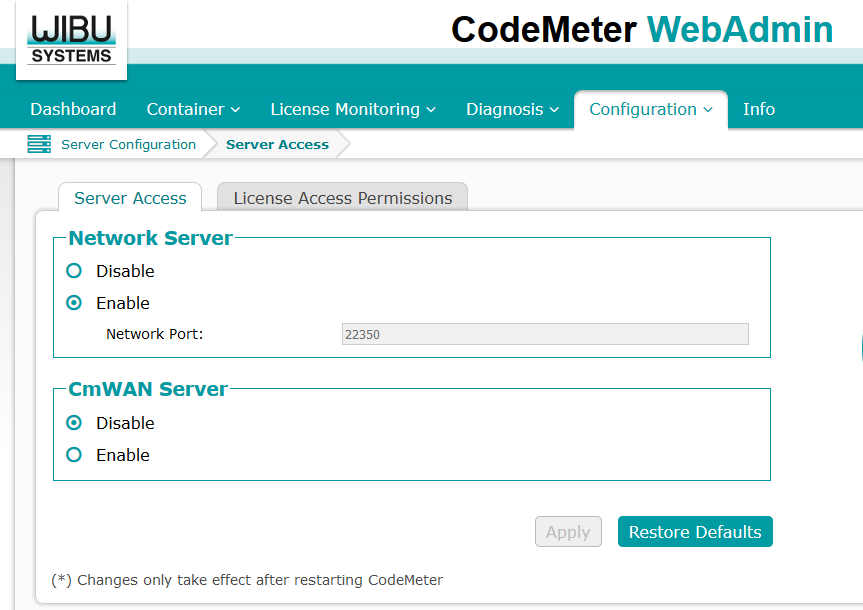
- In the CodeMeter webAdmin, Configuration, Server: Enable the Network Server
- Restart CodeMeter
- Depending on the network, setup routers, firewalls etc.
- For additional details consult the CodeMeter manual
Setting Up a CodeMeter Client
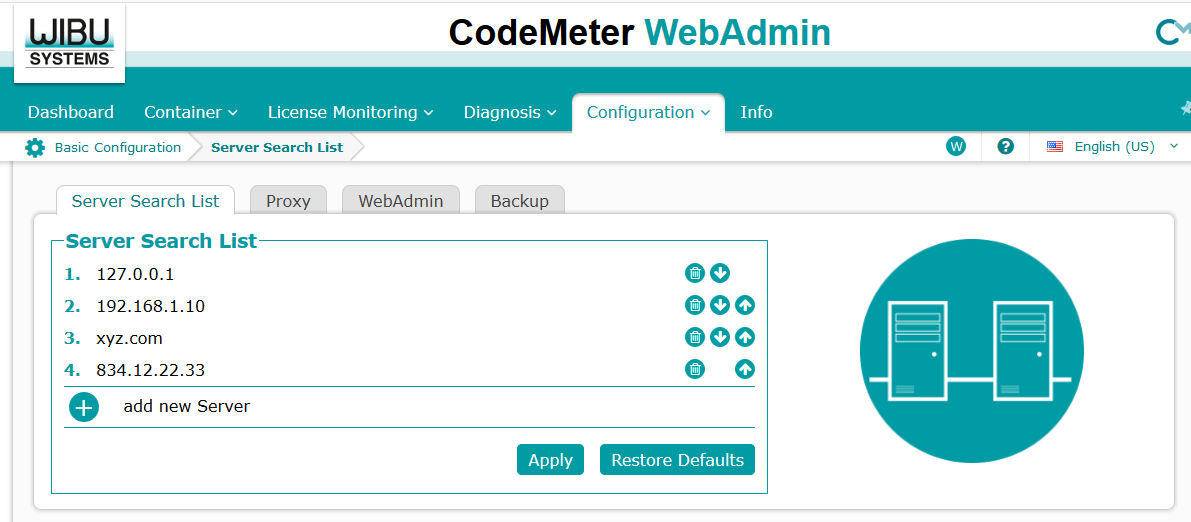
- In the CodeMeter webAdmin, Configuration, Basic, Search List:
If the server is not in the same sub-net, enter the Server Name or the IP address to the search list. - Restart go2monitor and check if the software will start. During start-up, you should see a message like “Scanning for Network dongle, please wait”
In case of problems:
- Remove local dongles
- Check if in your network port 22350 is not blocked (router, firewall, mobile network etc.)
Last update on 2026-03-23 by Rolf Haenggi.